Published on:
•
Last Updated:
For everyday folk, there’s plenty of printing jargon you’ll come across as you turn your project into a final, tangible printed product. We know that some of these words and terms can be confusing if you’ve never encountered them before, and that’s why we’re here to help you break them down and understand what they mean before you send your project off to the printer. Below, we explore what dots per inch - otherwise known as a printer’s DPI - means, and how it’s an integral part of getting a handle on how your printed project comes to life.
What Does DPI Mean?
In simple terms, dots per inch (DPI) refers to the resolution or quality of a visual component in your print file. A minimum DPI is required in commercial printing so that the quality of your images have a high enough resolution to translate to a high quality print job. DPI is a setting that can be controlled while exporting your files, and is an important step to understand before your project is sent off to the printer.
Think of DPI as a way of measuring the resolution. Whereas videos might be measured in a resolution of 1080p or 4K, visual images on a print document are measured in dots per inch. What this means in practice is simply how many ink droplets there are within one inch of your printed image. The more dots of ink per inch the picture contains, the more details will be present in the printed result. Thus, the higher the DPI number means the more ink droplets are tightly bunched together.
If you’ve ever come across pixels per inch (PPI), you might have mistaken it with DPI. No need to fret - this is a common misunderstanding, but the differences vary in what they represent. PPI refers to the number of pixels contained within each inch of a digital image, meaning that PPI is used exclusively to describe image resolution on a screen, not a printed document.

Common Commercial Printing DPI Requirements
At FolioFox, we ask that any kind of photo, illustration or image used in your print file ideally has a minimum resolution of 300 DPI. To break that down, that means there are at least 300 dots of ink used for every inch of your image. This is comparable to the benchmark DPI value that photographers and graphic designers also usually work to in order to get the best and most professional results in their printed images.
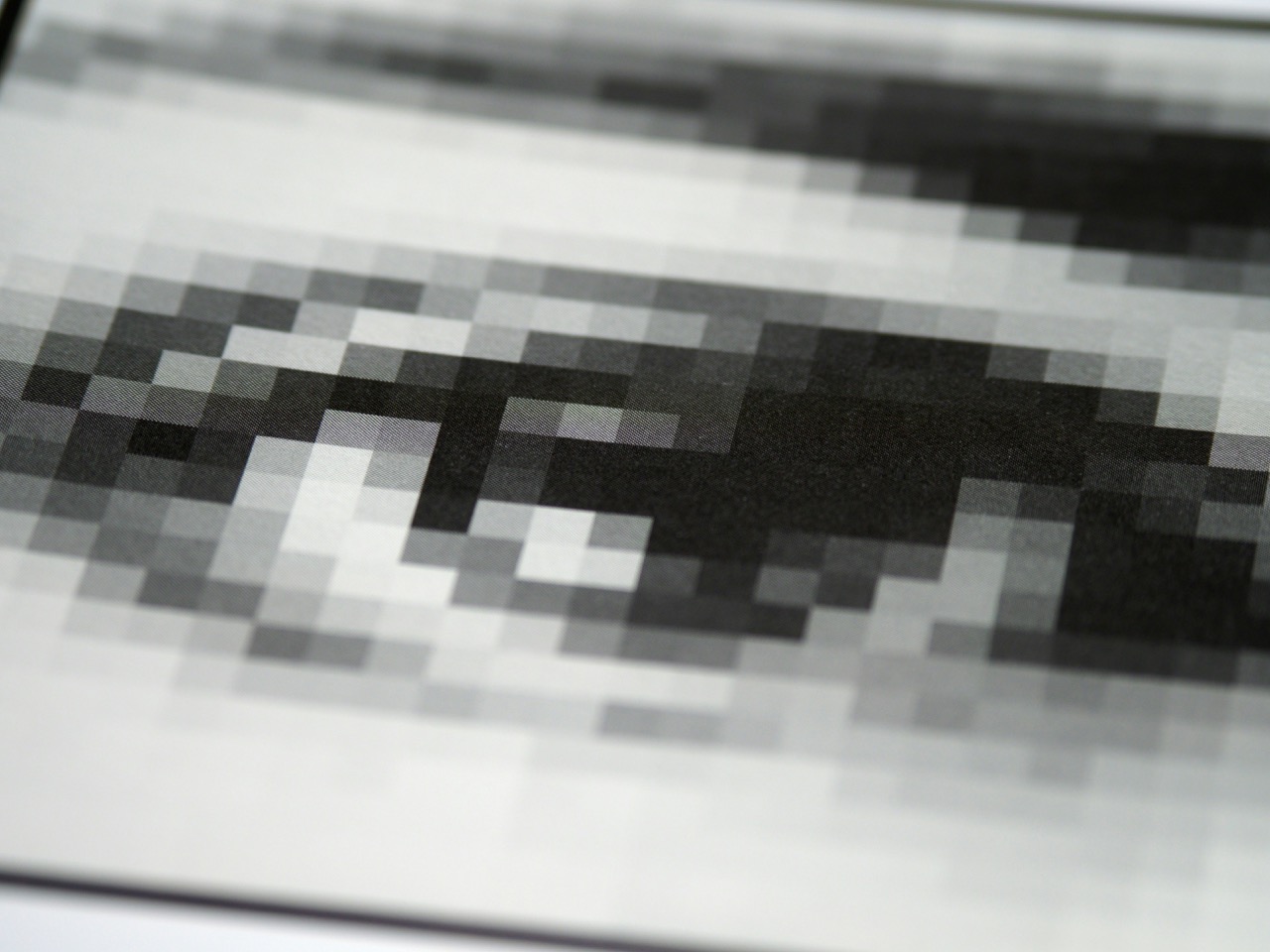
Ensuring that the visual components on your print file have a 300 DPI means that when your project is printed, the images will not come out blurry, pixelated or inaccurate. This number value differs slightly if your project is a line art or text-based artwork - in that case, we ask that your artwork has a resolution of 600 DPI for maximum impact.
How Do You Work Out Your Project’s DPI?
Figuring out if the images in your project are at least a DPI of 300 is simple, but will differ depending on what software program you are using to construct your print file.
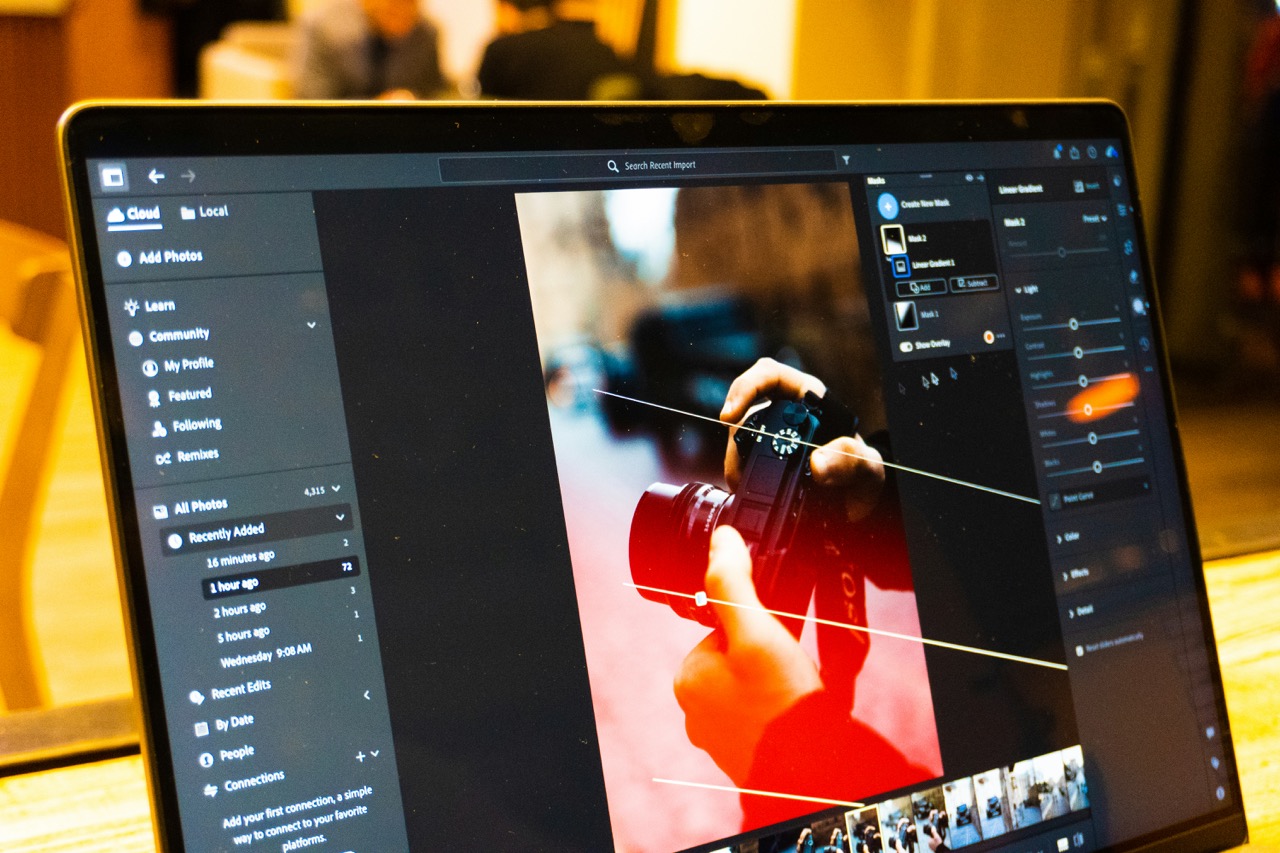
For Adobe users, resolution is measured in PPI, however the ratio of PPI to DPI is 1:1, so you can use this same number as your DPI. If you’re using Photoshop, to find out your image’s DPI, launch the program on your computer and then navigate to File, then to Open, and then select your image. Once your image is opened, click Image, then Image Size. In the dropdown box besides Resolution, choose Select Pixels/Inch - here, you’ll find the resolution value of your image.
If you’re using InDesign, the process is similarly straightforward.
- Launch InDesign and navigate to File, then New, then Document, and click OK once you are satisfied with the page dimensions.
- Next, insert an image, then navigate to the top bar and click Window, then Links. The box that appears will let you know the dimensions of your image, including its Actual PPI and Effective PPI.
The difference between these two values is that the Actual PPI is the resolution of the image while at its original size. Effective PPI on the other hand is the resolution of the image based on how it is placed on the InDesign page - meaning that it is representative of how the final product would look if the image was to be enlarged or reduced in size before you print it. In short, if you’re using InDesign you’ll want your image to have an Effective PPI of the value you need for your DPI.
All in all, understanding what a DPI is and the importance of the role it plays in the printing process is relatively simple. As long as your DPI is in line with your printer’s requirements - being more often than not a DPI of 300 - your file should be good to go to be professionally printed with clarity, sharpness and finesse.
To learn more about our printing services and get started on your printing journey, get in touch with our team today. We're here to help you navigate the evolving world of printing with confidence.